
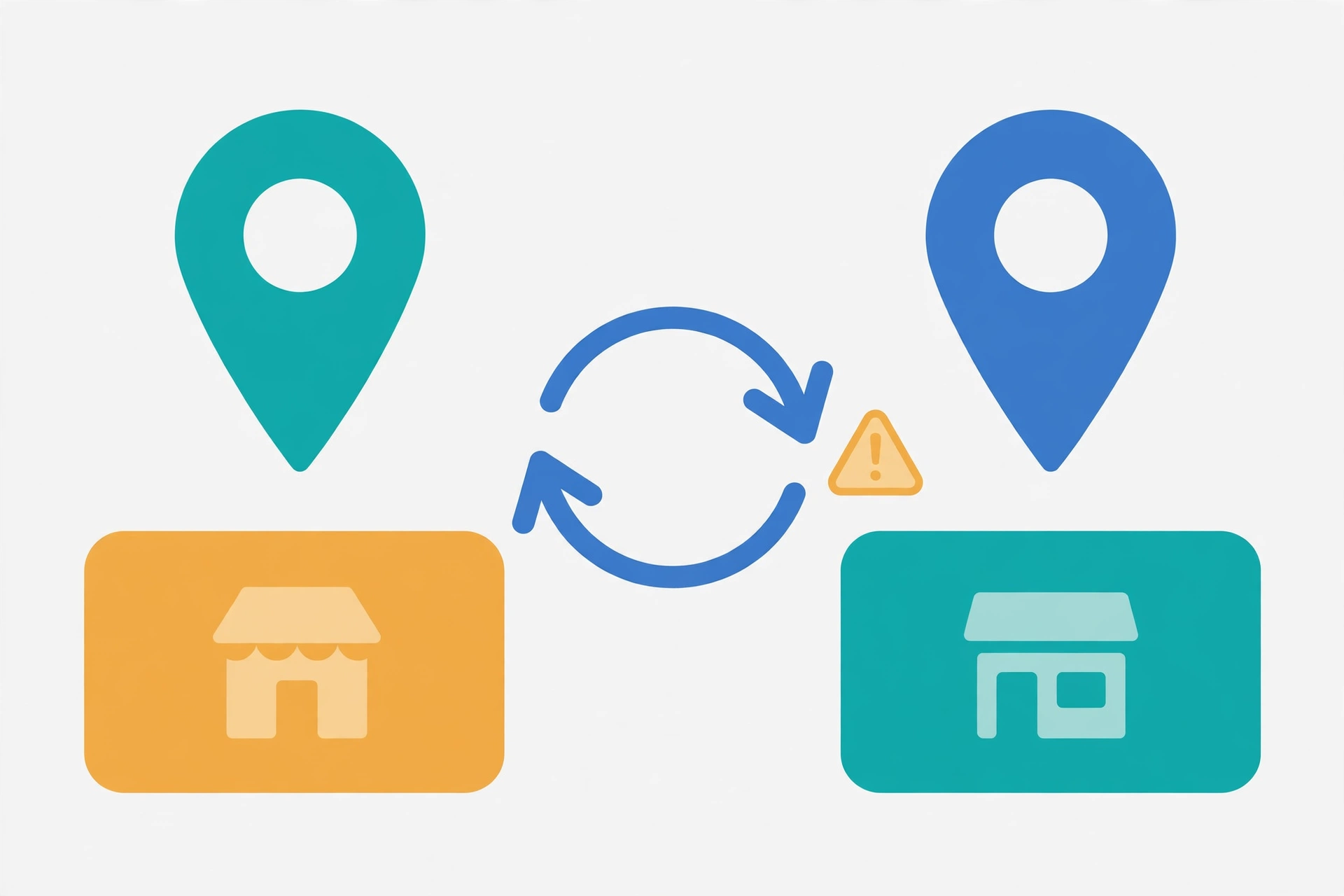
Bing Places for Business lets you import your Google Business Profile and keep the two listings in step. It sounds like free visibility: one profile to manage, two search engines covered. For many businesses it is exactly that. But the sync has real disadvantages, and they tend to surface weeks after you set it up — as a duplicate listing, a wrong phone number you cannot fix, or a holiday opening-hours change that never arrived. The fix is rarely quick, and in some cases the sync itself is what caused the problem.
Syncing Bing Places with Google Business Profile copies your Google listing into Bing on a weekly, biweekly, or monthly schedule. It is fast, but it is one-way, you cannot pick which listings sync, it can create duplicates, and you lose the ability to edit the Bing listing directly. This article walks through every disadvantage, explains when syncing still makes sense, and gives you a checklist to run before you turn it on.
How the Sync Actually Works
Bing Places for Business is Microsoft’s free tool for managing how a business appears in Bing search and Bing Maps. In October 2025, Microsoft relaunched it and moved the experience from bingplaces.com to bing.com/forbusiness. The quickest way in for most businesses is the Google import: choose “Import from your Google Business Profile”, pick a sync frequency — weekly, every two weeks, or monthly — sign in to Google, and import the listings Bing finds.
If your Google profile is already verified, Bing verifies the imported listing automatically, without a separate PIN. The listing then goes through Bing’s normal publishing process, which Microsoft says typically takes 7 to 12 days in North America and up to two weeks elsewhere. That is the upside. Here is everything that can go wrong.
1. It Can Create Duplicate Listings
The most common problem with the sync is duplication. Microsoft warns in its own help pages that syncing may create duplicate listings, especially if a listing for the business already exists on Bing. That happens often: Bing builds listings from many sources, so a business that has existed for years frequently already has a Bing listing, claimed or unclaimed, before the owner ever opens Bing Places.
Duplicates split your visibility. Reviews land on one copy, photos on another, and customers calling the wrong number reach an old listing. Cleaning up a duplicate means claiming it, proving ownership, and asking Bing to merge or remove it — a slow process that undoes the time the sync was supposed to save. Before syncing, search Bing for your business name and check whether a listing already exists.
2. You Lose the Ability to Edit the Listing Directly
Once a listing is linked to Google, direct editing is not available in the Bing Places dashboard. Microsoft states this plainly in its help pages: for listings linked to a Google Business Profile, you change the details in Google and let the sync carry the change to Bing. The Bing dashboard becomes read-only for that listing.
That matters more than it sounds. A wrong category, a missing service, or a photo that Bing cropped badly cannot be fixed where you see it. You have to fix it in Google, wait for the next sync, and then check whether Bing applied it. If you manage several listings, the round trip gets confusing fast.
3. Updates Are Slow — and Edits Reset the Clock
Syncing is not instant. Changes made on Google reach Bing only on the schedule you picked, and a monthly sync can leave a wrong phone number or closed-for-renovation notice live on Bing for weeks. Even the initial publish takes 7 to 12 days, and Microsoft notes that every edit resets the publish date — so editing a listing while it is still publishing pushes the go-live date back again.
Seasonal businesses feel this most. A Christmas opening-hours change made in late November may not reach Bing until after Christmas if the sync runs monthly. If your hours, services, or contact details change often, the sync schedule becomes a liability rather than a convenience. Our guide to local SEO for small business explains why keeping business details accurate everywhere is one of the highest-value local SEO habits.
4. You Cannot Choose Which Listings Sync
Microsoft is clear about this one: you cannot manually select specific listings to import. When you connect a Google account, Bing imports every eligible listing it detects in that account. For a business with one location, that is fine. For a franchise owner, a multi-location brand, or an agency managing several clients from one Google account, it is not.
A listing you did not mean to sync — a closed branch, a test profile, a location under a different brand name — comes across with the rest, and then needs to be dealt with on Bing’s side. If your Google account holds listings you do not want on Bing, manage Bing separately instead of syncing.
5. Some Fields Do Not Carry Over Exactly
Not everything in your Google profile survives the trip to Bing. Microsoft warns that categories and Google UTM tracking tags do not always sync exactly, and the two platforms do not have identical fields for every attribute. A category that fits your business precisely on Google may land on a broader or slightly different category on Bing, which changes the searches your listing appears for.
The practical fix is to check the listing on Bing after it publishes and compare every field against Google — name, address, phone, hours, categories, services, and website link. If a field is wrong and the listing is linked, you cannot correct it on Bing; you correct it on Google and wait for the next sync. That loop is the hidden cost of the shortcut.
6. Errors on Google Copy Straight Across
The sync is a copy machine: whatever is in your Google profile is what Bing gets. A typo in the business name, an old phone number, a wrong website URL — all of it transfers, and Bing will use the Google data to overwrite whatever its own listing held. If your Google profile has been wrong for months without anyone noticing, syncing spreads the error to a second search engine instead of fixing it.
Clean up Google first. Check the name, address, phone, website, hours, and categories, and fix anything that is out of date before you connect the accounts. If you have not set up your Google listing yet, our guide on how to create a Google Business page walks through the setup and verification steps.
7. Turning Sync Off Does Not Unlink the Accounts
Many owners assume that switching sync off returns their Bing listing to normal. It does not. Microsoft’s help pages state that turning off the Google Business Profile sync stops future updates but does not unlink the accounts — the listing stays connected to Google, and direct editing stays unavailable. Reclaiming full control of the listing means going through Bing’s support process, not just flipping a switch.
That makes the sync a one-way door in practice: easy to walk through, awkward to walk back out of. Before enabling it, be sure you are comfortable managing the listing through Google indefinitely.
8. Bing Is a Smaller Audience, So the Trade-Off May Not Pay
None of this means Bing Places is worthless. Bing powers a meaningful share of desktop searches, and its listings feed into Microsoft’s AI answers as well as Bing Maps. But the audience is far smaller than Google’s, so the sync’s disadvantages have to be weighed against a smaller reward. For a single-location business with a clean Google profile, the sync is usually worth it. For a multi-location business, a franchise, or anyone whose listings change often, the time saved by syncing may be smaller than the time spent fixing what it breaks. Our local SEO ranking factors guide covers where listing accuracy actually moves the needle.
When Syncing Still Makes Sense
Despite the disadvantages, syncing is the right choice when your situation is simple: one location, one Google account that holds only that listing, a verified and accurate Google profile, and details that rarely change. In that case the sync does what it promises — a verified Bing listing with almost no ongoing work, kept in step with Google on a schedule you choose. Set it to weekly rather than monthly, so changes arrive quickly, and check the Bing listing once after it publishes.
When to Manage Bing Separately Instead
Manage Bing Places by hand when any of these apply: you already have a Bing listing, you have several locations or several brands in one Google account, your hours or services change often, or you need categories and attributes that do not map cleanly between the two platforms. Creating the listing manually takes longer — you will need to verify it, usually with a PIN by phone, text, email, or postcard — but you keep full editing control and you avoid the duplicate risk. For chains and franchises, that control is usually worth the extra hour. Our franchise website audit checklist covers the same accuracy-first thinking for multi-location businesses.
Before You Sync: A Quick Checklist
- Search Bing for your business first. If a listing already exists, claim and clean it up before syncing.
- Fix Google first. Name, address, phone, website, hours, categories — correct everything before it copies across.
- Check what else is in the Google account. Remember, every eligible listing syncs. Remove or separate anything you do not want on Bing.
- Pick weekly sync. Monthly is too slow for any business whose details change.
- Verify the result. After publishing, compare the Bing listing field by field against Google.
- Know the exit cost. Turning sync off stops updates but does not unlink the accounts, so treat the decision as long-term.
Google’s own help pages for managing a Business Profile are worth reading alongside this, since the quality of the sync depends entirely on the quality of the Google profile feeding it.
Frequently Asked Questions
Does syncing Bing Places with Google Business Profile create duplicates?
It can. Microsoft warns that syncing may create duplicate listings, especially when a listing for the business already exists on Bing. Search Bing for your business name before syncing, and claim any existing listing first, so the import matches it instead of creating a second one.
Can I edit my Bing listing after syncing it with Google?
No, not directly. For listings linked to a Google Business Profile, Microsoft says direct editing is not currently available in the Bing Places dashboard. You make changes in Google and wait for the next sync — weekly, biweekly, or monthly depending on what you chose — to carry them across.
How long does it take for a synced Bing Places listing to go live?
Microsoft says publishing typically takes 7 to 12 days in North America and up to two weeks elsewhere, even when the listing is auto-verified from Google. Every edit you make while it is publishing resets the publish date, so avoid changing anything until it is live.
How do I stop syncing Bing Places with Google Business Profile?
You can turn the sync off in the Bing Places settings, which stops future updates from Google. But it does not unlink the two accounts, and direct editing on Bing stays unavailable. If you want full control of the listing again, you will need to go through Bing’s support process to unlink it.
Final Thoughts
The Google sync is the fastest way to get a business onto Bing Places, and for a simple single-location business it is usually the right call. But it is a one-way copy with real trade-offs: possible duplicates, no direct editing, slow updates, and no way to pick which listings come across. Spend ten minutes on the checklist above before you turn it on, and the shortcut will save you time instead of costing you a cleanup.
Leave a Reply